
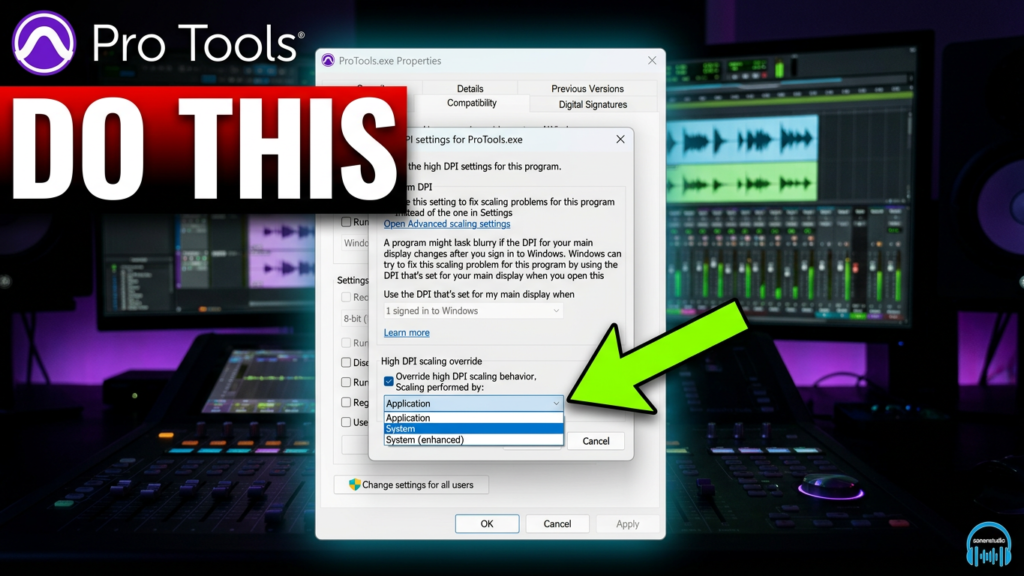
If you run Pro Tools on a 4K display in Windows 11 or Windows 10, you have likely run into the microscopic UI issue: tiny text, unreadable faders, and microscopic plugin interfaces.
Changing your global Windows display resolution or desktop scale factor throws off every other application on your machine. Fortunately, you can force Windows to scale only Pro Tools up to a usable size while leaving the rest of your system completely untouched.
This method works in Pro Tools 2026, Pro Tools Studio, Ultimate, and older versions running on modern Windows releases.
VIDEO
Step 1: Locate the Pro Tools Executable
- Close Pro Tools completely before adjusting properties.
- Open File Explorer and head to the Pro Tools installation directory: C:\Program Files\Avid\Pro Tools\
- Locate
ProTools.exe.
Step 2: Open High DPI Compatibility Settings
- Right-click
ProTools.exe(Application File) and select Properties. - Click over to the Compatibility tab.
- Near the bottom, click the Change high DPI settings button to launch the advanced settings dialog.
Step 3: Enable the High DPI Scaling Override
- At the bottom of the window, locate the section labeled High DPI scaling override.
- Check the box for Override high DPI scaling behavior.
- In the Scaling performed by: dropdown, select System.
- Click OK to close the DPI dialog, then click Apply and OK on the Properties window.
Verification: Check Your Results
Relaunch Pro Tools and load a session. The Mix and Edit windows, transport bar, track headers, and plugins will appear larger, usable, and readable.
Enjoy.
➡️BUY PRO TOOLS on AMAZON (affiliate link)
About Post Author




More Awesome Stuff
Hide Your REAL NAME in FL Studio
How To Removed Copyright Music and Keep the Dialogue
How To Use Retrospective Recording in Studio One 6